
MT5 VPS Setup: Test Latency with MetaTrader’s 24h Trial for Traders

Yes, you can run MetaTrader 5 continuously on a VPS, and for most traders MQL5 virtual hosting is the fastest way to get there. It migrates your setup with one click and includes a free trial. Advanced algo traders who need tighter latency control or custom security settings should provision a standalone Windows VPS instead, running Windows Server 2019 or 2022, at a modest monthly cost above the built-in option.
TL;DR:
- Proper VPS setup requires testing latency with actual ICMP pings from a datacenter near your broker’s server before going live, as paper specs can be misleading.
- For lightweight trading loads, a VPS with 1 vCPU and 2 GB of RAM suffices, while heavier use calls for 4 or more vCPUs, SSD storage, and proper security measures.
- Locking down the VPS with unique passwords, RDP port changes, and scheduled updates prevents unauthorized access and unexpected reboots during trading hours.
- Regularly monitoring latency, trade activity, and error logs via MT5 and external tools is essential to confirm EA operation and avoid silent downtimes.
- Most setup mistakes are fixable in minutes, with key pitfalls including disabled algorithmic trading, outdated Windows editions, default RDP ports, and high broker latency.
Table of Contents
- MT5 VPS Setup Checklist: The Fast Path
- What VPS Specs Does MT5 Actually Need?
- How Do You Provision a VPS and Connect via Remote Desktop?
- Installing MT5 and Migrating Your EAs
- Locking Down Your MT5 VPS: Security and Reliability
- How Do You Know MT5 Is Actually Running?
- Fixing the Most Common MT5 VPS Mistakes
- When to Use MQL5 Virtual Hosting vs. a Standalone Windows VPS
- Where to Go Deeper on MT5 VPS Setup
- Sources
MT5 VPS Setup Checklist: The Fast Path
Before touching any settings, map out the sequence. Skipping steps here is how traders end up with an EA that silently stopped trading three days ago.
- Pick your route: MQL5 virtual hosting for speed, or a Windows VPS from a provider with a datacenter near your broker’s servers.
- Connect to the machine, either through the MetaTrader platform (MQL5) or Remote Desktop (Windows VPS).
- Lock down admin credentials immediately, before installing anything else.
- Install MT5, migrate your Expert Advisors, indicators, and saved profiles, then enable algorithmic trading in the platform’s options.
- Configure MT5 to auto-start after any reboot, and set up basic monitoring.
- Run a ping test to your broker and trade on a demo or virtual funded account for at least a day before going live.
That last step matters more than most guides admit. A VPS that looks fine on paper can still choke an EA if the round trip to your broker’s server runs long.
What VPS Specs Does MT5 Actually Need?
Buy for your EA load, not for headroom you’ll never use. MT5 itself is lightweight, but poor storage or CPU throttling under a cheap hosting plan will cost you fills.
- Operating system: Windows Server 2019 or 2022. Desktop editions of Windows force update-related reboots on their own schedule, which is the last thing you want mid trading session.
- Light use (1 EA, 1 chart): 1 vCPU and 2 GB of RAM is generally enough.
- Moderate use (4 to 6 EA charts): 2 vCPU and 4 GB of RAM is the practical sweet spot for most swing and multi-pair setups, according to sizing guidance from FxRobotEasy.
- Heavy use (multiple terminals, tick-data EAs, or high-frequency logic): 4 or more vCPUs, with SSD or NVMe storage rather than spinning disks.
Statistic Callout: MetaTrader’s own virtual hosting service includes a free 24-hour trial, so you can test real conditions, including your actual latency to your broker, before committing a dollar.
If you’d rather skip the sizing math entirely, a managed Windows VPS provider such as AceRDP will typically recommend a tier based on your EA count during checkout, which saves the guesswork for traders setting this up for the first time.

How Do You Provision a VPS and Connect via Remote Desktop?
Getting into the machine is the easy part. Locking it down before you install anything is where most setups go wrong.
- Choose a datacenter physically close to your broker’s trading server, not just close to you. Distance to the broker is what drives execution speed, and providers with locations in financial hubs like New York, London, or Singapore are worth checking against your broker’s server list.
- Run a ping test to your broker’s hostname from a few candidate locations before you commit. Traders who prioritize latency verify this with actual ICMP pings rather than trusting a provider’s marketing map.
- Use the IP address, username, and password your provider emails you to connect over Remote Desktop Protocol.
- Complete the initial Windows setup, then immediately change the Administrator password to something you haven’t used elsewhere.
- Create a separate standard user account, something like “mt5user,” for daily operations, and disable the built-in Administrator account once that’s set up.
- Adjust power settings so the machine never sleeps. Disconnect from RDP when you’re done. Never log out, since logging out can close the MT5 session depending on how you’ve configured auto-start.
- Enable drive sharing in your RDP client if you need to move EA files or set files between your desktop and the VPS.
Pro Tip: Screenshot your provider’s connection details before you close that first email. Providers bury the IP, port, and credentials in ways that are annoying to dig up again three weeks later when you need to reconnect from a new device.
Installing MT5 and Migrating Your EAs
Once you’re securely inside the VPS, the install itself takes minutes. Getting your EAs to actually resume trading takes a little more care.
- Download the MT5 installer, either your broker’s branded version or the generic one from MetaQuotes, and run it as Administrator.
- Open the platform, go to File → Open Data Folder, and copy your Expert Advisor and indicator files into the MQL5/Experts and MQL5/Indicators subfolders.
- Right-click Expert Advisors in the Navigator panel and select Refresh so MT5 registers the new files.
- Go to Tools → Options → Expert Advisors and enable algorithmic trading, allow DLL imports if your EA needs them, and whitelist any WebRequest URLs your strategy calls out to.
- Attach your EAs to the correct charts, restore your saved profile, and save it again so the layout persists.
- Configure MT5 to launch on boot, either by adding a shortcut with the
/profile:YourProfileflag to the Windows Startup folder, or by building a Task Scheduler job for tighter control. - Before switching to a live or funded account, run everything on a demo or a simulated funded evaluation for at least a full session to confirm each EA fires the way it did on your original machine.
Locking Down Your MT5 VPS: Security and Reliability
A trading VPS is a target the moment it’s online, and an unsecured one is worse than no automation at all, because it can lose money faster than you can react.
- Change the RDP port away from the default 3389, and restrict access to your own IP address wherever your provider’s firewall allows it.
- Disable the default Administrator login entirely once your standard user account is confirmed working.
- Turn on Windows Firewall and schedule Windows updates for a window when your EAs are least active, rather than letting them install and reboot the machine at random.
- Use a genuinely strong, unique password, and turn on two-factor authentication if your provider offers it.
- Set Task Scheduler to run MT5 “whether user is logged on or not,” with the highest privileges checked, which is what actually lets the terminal survive a disconnect or scheduled reboot without you sitting at the keyboard.
Pro Tip: If your EA relies on stored login credentials for auto-start, Sysinternals Autologon is a cleaner solution than saving a password in a batch file. Store any credentials through a proper Windows credential vault, not a plaintext script.
How Do You Know MT5 Is Actually Running?
Assuming your setup works is how traders discover, three days late, that an EA has been sitting idle since a Windows update rebooted the box.
- Ping your broker’s server from the VPS regularly and compare the result against the latency shown in MT5’s status bar. Scalping strategies generally need that number in the single digits to hold up, per FxRobotEasy’s benchmarking.
- Set up MT5’s built-in email alerts through SMTP and enable push notifications to your phone for trade events and errors.
- Check the MT5 Journal tab and the VPS’s own event logs whenever something looks off. If you’re on MQL5 hosting, you can pull journal access straight from the hosting control panel.
- For accounts where downtime is expensive, an external uptime monitor or a simple watchdog script that restarts MT5 automatically adds a second layer of protection your phone notifications won’t catch on their own.
Fixing the Most Common MT5 VPS Mistakes
Most MT5 VPS failures trace back to one of five setup errors, and every one of them is a five-minute fix once you know where to look.
- Algorithmic trading disabled. Check Tools → Options → Expert Advisors and confirm the box is checked, along with DLL imports and WebRequest URLs your EA needs.
- Running on desktop Windows. Forced update reboots will interrupt trading at the worst possible time. Migrate to Windows Server.
- RDP left on port 3389 with Administrator active. Change the port and disable that account before you do anything else.
- MT5 not auto-starting after reboot. Add a Startup folder shortcut or a proper Task Scheduler entry set to run regardless of login state.
- High latency to your broker. Re-run your ping test. If the number is bad, migrate to a datacenter actually close to your broker, not just close to you geographically.
When to Use MQL5 Virtual Hosting vs. a Standalone Windows VPS
The convenience of MQL5 virtual hosting is genuinely underrated. It selects a server near your broker automatically, migrates your setup in a few clicks, and gives you 24 hours to test before you’re billed. For a swing trader running one or two EAs, that’s usually the whole decision, done in ten minutes.
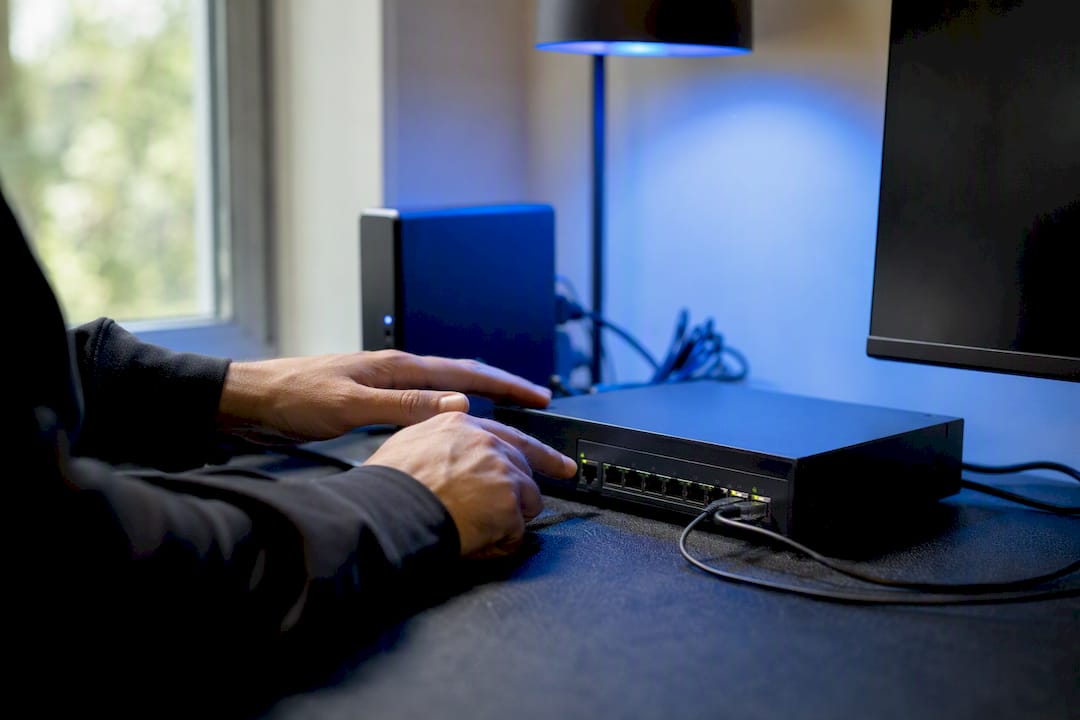
A standalone Windows VPS earns its extra setup time in specific cases: scalpers chasing single-digit millisecond latency, traders running five or more terminals across different broker accounts, or anyone who wants firewall rules and RDP hardening beyond what a managed platform exposes. If you’re running EAs on a funded evaluation, the extra control over uptime and monitoring is often worth the added complexity, since a missed connection during a scaling phase costs more than a few dollars of hosting fees ever would.
My honest read: most traders overthink this decision and underthink the ping test. Spend less time comparing hosting brochures and more time actually measuring latency to your specific broker before you commit to either route.
— Jean
Where to Go Deeper on MT5 VPS Setup
Start with MetaTrader’s own virtual hosting documentation and MQL5’s VPS management pages for the official feature set, then check a provider guide like ColossusCloud’s setup walkthrough for hardening details.
Sources
- MetaTrader 5 Virtual Hosting
- Best VPS Setup for MT5 EA Trading: 2026 Guide
- MetaTrader VPS setup: run MT4/MT5 on a forex VPS 24/7 | ColossusCloud